

There are a number of keyboard shortcuts to make using GamePlan and BuilderPlan more efficient.
👉 For Mac users, substitute the Command (⌘) key for the Control (Ctrl) key in the shortcuts below.
🖱️✌️ Double-Click
- Double-click on Whiteboard → Double click on the Whiteboard to create a new task, milestone or group. This is more efficient than drag and drop.
🗑️ Delete
- Delete → Delete the selection
To restore the deleted items, click Undo.
↩️ Undo & Redo
- Ctrl + Z → Undo
- Ctrl + Y → Redo
🖼️ Zoom to Fit
- F → Zooms and pans the Whiteboard so the current selection fits in view. If nothing is selected, the entire Whiteboard is fitted to the screen. Most commonly used to zoom all on the full plan, or to focus on a single Group.
🗂️ Expand & Collapse Groups
- Tab → Toggles the selected Group. Expands a collapsed Group, or collapses an expanded Group. This is the fastest way to drill in and out of Groups with one finger on the keyboard.
- + → Expand the selected Group. Useful when you want to rapidly drill down multiple nested levels by pressing + repeatedly.
- – → Collapse the selected Group. Placed directly to the left of + on the keyboard for fast – to collapse and + to expand workflow.
💡 Tip: Tab is the most efficient all-in-one toggle, while – and + give you finer control when working through deep hierarchies.
🖱️/ 🔲 Selecting Multiple Items
- Ctrl + Click → Add/remove individual items to your selection
- Shift + Drag → Box-select all items within the area
- Ctrl + A → Select all items on Whiteboard
🔗 Create Linked Tasks
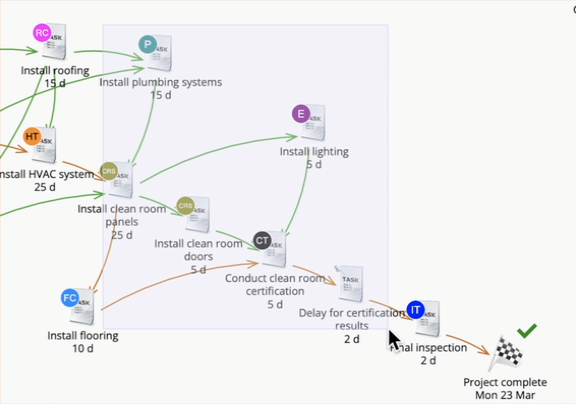
- Ctrl + Drag arrow → Create a new linked Task/Milestone/Group in one step
- Ctrl + Shift + Drag arrow → Create the link in the reverse direction (from new Task → existing Task)
🔍 Search
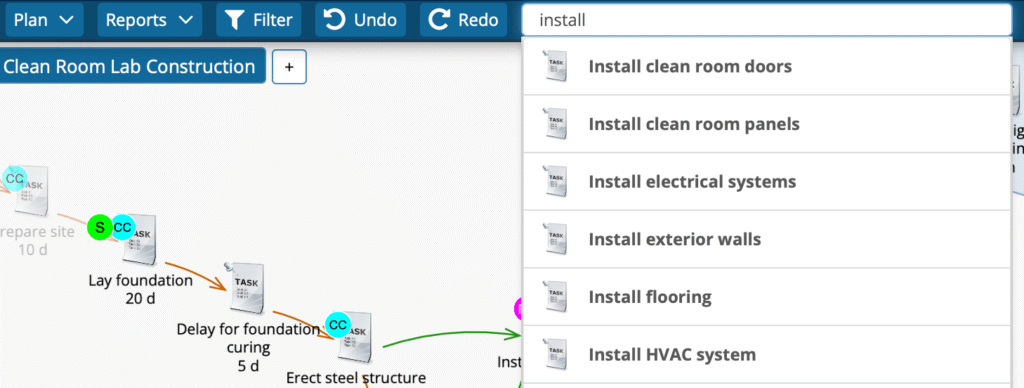
/→ Activates the search field- Arrow ↑ / ↓ → Navigate results
- Enter / Return → Select highlighted item (Whiteboard pans to center it)
⬆️⬇️ Navigate Dependencies
Arrow ↑ → Selects the predecessors of the current selection.
Arrow ↓ → Selects the successors of the current selection.
The Whiteboard view automatically pans and zooms as needed so that the selected items are brought into view. This makes it fast and intuitive to follow the flow of your plan forward or backward.
💡 Pro Tip: Use this shortcut to quickly trace the critical path of a project or to review how work flows into and out of a key task.